C++ library in a .NET/C# project with CMake
Last time I needed to use a C++ library in an Android project, and now came a request for the very same C++ library to be used in a .NET/C# project.

Good news is that it is possible to handle both C++ and C# targets in a single CMake project, which makes the maintenance much easier: no need to involve a yet another build system, not need to use an IDE - everything can be done with CMake and bare CLI. Bad news is that some things will work only on Windows.
Base project
The idea is the same as it was with Android: native C++ library is integrated/wrapped into a .NET/C# library, which then can be used in a .NET/C# project to call the that native C++ library functions.
If anything, this is my .NET environment on Windows:
$ dotnet --info
.NET SDK:
 Version:           9.0.304
 Commit:            f12f5f689e
 Workload version:  9.0.300-manifests.ad61bb1c
 MSBuild version:   17.14.16+5d8159c5f

Runtime Environment:
 OS Name:     Windows
 OS Version:  10.0.22000
 OS Platform: Windows
 RID:         win-x64
 Base Path:   C:\Program Files\dotnet\sdk\9.0.304\
Native C++ library
Let’s take the same C++ library as the last time:
./cpp/library/
├── include
│   └── Thingy
│       └── thingy.h
├── src
│   ├── stuff.h
│   └── thingy.cpp
├── CMakeLists.txt
└── Config.cmake.in
The library type does not have to be hardcoded to SHARED, and there will be some more details about this later.
Also, library has a dependency of its own - just for the sake of demonstrating how to deal with 3rd-party dependencies and also to give the library some meaningful functionality aside from simply printing to stdout. Like the last time, the dependency is JsonCpp, and of course it is resolved with vcpkg.
Having built it as usual:
$ cd /path/to/csharp-cpp-example/
$ mkdir build && cd $_
$ cmake -G "Visual Studio 17 2022" -DCMAKE_INSTALL_PREFIX="../install" \
    -DCMAKE_TOOLCHAIN_FILE="$VCPKG_ROOT/scripts/buildsystems/vcpkg.cmake" \
    ..
$ cmake --build . --config Release
you’ll get the following thingy.dll binary, as expected:
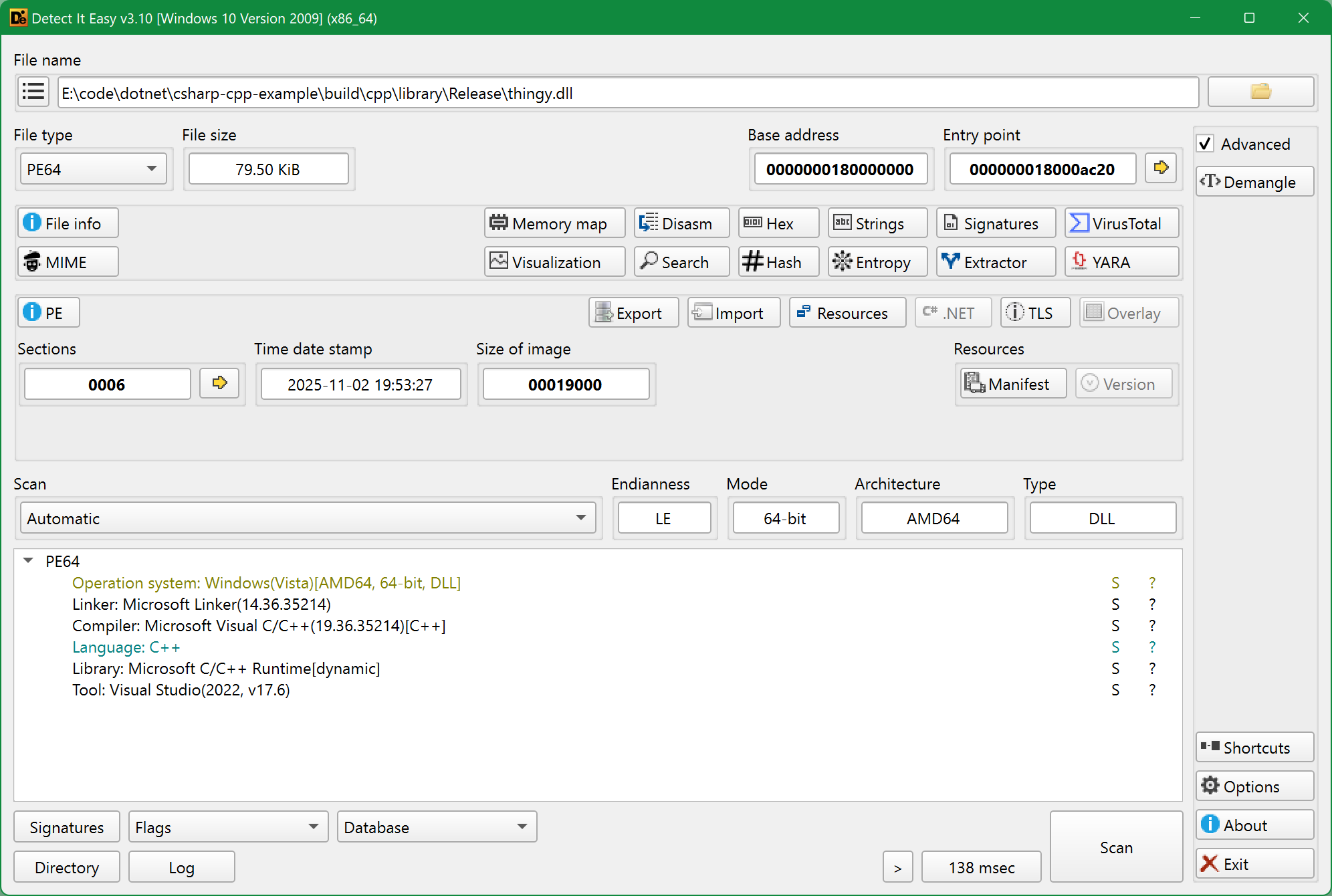
Using Visual Studio generator isn’t required at this stage, but later the project will have to be configured with exactly a Visual Studio generator (as long as this is for building on Windows), so you might just as well start using it already now.
As I already said, this library does not have to be a DLL, it will “work” as a static .lib archive too, but for starters let’s proceed with everything being a DLL.
Later in the article we’ll be referring to this library as the “native” one.
C# library
The base C# library is dead simple:
./csharp/library/
├── src
│   └── Some.cs
└── CMakeLists.txt
where the only source file Some.cs contains the following:
using System;

namespace Lbr;

public static class Some
{
    public static string getSome()
    {
        return "a string from C#";
    }
}
And the CMake project file is what you would expect to see in a regular C++ library project:
add_library(some SHARED) # here it has to be hardcoded to `SHARED`, since this is for .NET

target_sources(some
    PRIVATE
        src/Some.cs
)
But an important specific here is that the library type has to be SHARED, because it is expected to produce a .NET assembly, which should be a DLL. If you try to configure the project with the library type hardcoded to STATIC or without BUILD_SHARED_LIBS being set, then it will fail:
CMake Deprecation Warning in library-csharp/CMakeLists.txt:
  The C# target "some" is of type STATIC_LIBRARY.  This is discouraged (and
  may be disabled in future).  Make it a SHARED library instead.


CMake Error in library-csharp/CMakeLists.txt:
  Target "some" is of a type not supported for managed binaries.
Setting .NET SDK and language version
While the library project is very trivial, making it actually build with CMake isn’t so trivial. First you need to enable CSharp language: either with project(some LANGUAGES CSharp) or with enable_language(CSharp) (I went with that).
Then I took the wrong way and tried to specify the .NET SDK version with CMAKE_DOTNET_TARGET_FRAMEWORK_VERSION variable:
set(CMAKE_DOTNET_TARGET_FRAMEWORK_VERSION "net9.0")
I mean, can you really blame a girl for expecting this varaible to be the right one, given that it contains words “target” and “version”? But no, this is not the right one, because even though the project will configure and .sln/.csproj files will be generated, the build will then fail like this:
error MSB4184: The expression "[MSBuild]::VersionGreaterThanOrEquals(net9.0, 4.0)" can not be evaluated. Version string was not in a correct format.
You might think that this is because instead of net9.0 there should be 9.0, but if you’ll try again with a corrected value, then you’ll get this warning:
warning MSB3971: The reference assemblies for ".NETFramework,Version=v9.0" were not found. You might be using an older .NET SDK to target .NET 5.0 or higher
which means that something is still wrong with the .NET SDK version, and also you might get errors like this one:
error CS8370: Feature 'file-scoped namespace' is not available in C# 7.3. Please use language version 10.0 or greater.
which also indicates a wrong version of the .NET SDK. If you are curious which language version is actually used in your current .NET SDK, you can list then all like this (from Visual Studio Developer Command Prompt):
> csc.exe /langversion:?
Supported language versions:
default
1
2
3
4
5
6
7.0
7.1
7.2
7.3
8.0
9.0
10.0
11.0
12.0
13.0 (default)
latestmajor
preview
latest
and then you could set it in CMake:
# might be tempting to set `latest` instead of `13`, but this isn't recommended
string(APPEND CMAKE_CSharp_FLAGS " /langversion:13")
but that would only help with this particular language-related error, as the warnings about missing assemblies will remain, plus you’ll get some new ones:
warning MSB3270: There was a mismatch between the processor architecture of the project being built "AMD64" and the processor architecture of the reference C:\WINDOWS\Microsoft.NET\Framework\v4.0.30319\\mscorlib.dll", "x86". This mismatch may cause runtime failures. Please consider changing the targeted processor architecture of your project through the Configuration Manager so as to align the processor architectures between your project and references, or take a dependency on references with a processor architecture that matches the targeted processor architecture of your project.
and moreover (spoiler alert), the build will fail further with a different error like:
error CS0117: 'Marshal' does not contain a definition for 'PtrToStringUTF8'
…So yes, setting CMAKE_DOTNET_TARGET_FRAMEWORK_VERSION is not how this is supposed to be done. Instead one should explicitly set the CMAKE_DOTNET_SDK variable, because CMake does not default it to anything (and isn’t validating the value either):
set(CMAKE_DOTNET_SDK "Microsoft.NET.Sdk")
One other problem of not setting this variable might be that if there are some NuGet packages involved (there will be one later), then the build may fail like this:
error NU1202: Package System.CommandLine 2.0.0-rc.1.25451.107 is not compatible with net40
But that’s not all, aside from CMAKE_DOTNET_SDK you also need to set CMAKE_DOTNET_TARGET_FRAMEWORK version:
set(CMAKE_DOTNET_TARGET_FRAMEWORK "net9.0")
Without it you’ll get warnings like this:
warning NETSDK1138: The target framework 'net5.0' is out of support and will not receive security updates in the future.
and, again, language-related errors:
error CS8370: Feature 'file-scoped namespace' is not available in C# 7.3. Please use language version 10.0 or greater.
Also, you might mistakenly set it to 9.0 instead if net9.0, in which case you’ll get this error:
error NU1105: Invalid target framework '9.0'
But enough with the problems, here are the final statements for setting the .NET SDK and language version:
set(CMAKE_DOTNET_SDK "Microsoft.NET.Sdk")
set(CMAKE_DOTNET_TARGET_FRAMEWORK "net9.0")
# no need to set either of these, all of that should be taken care of by the preceding statements
#set(CMAKE_DOTNET_TARGET_FRAMEWORK_VERSION "9.0")
#string(APPEND CMAKE_CSharp_FLAGS " /langversion:13")
This is it, if you’ll now try to build the project, you’ll get the library (assembly) built as some.dll:
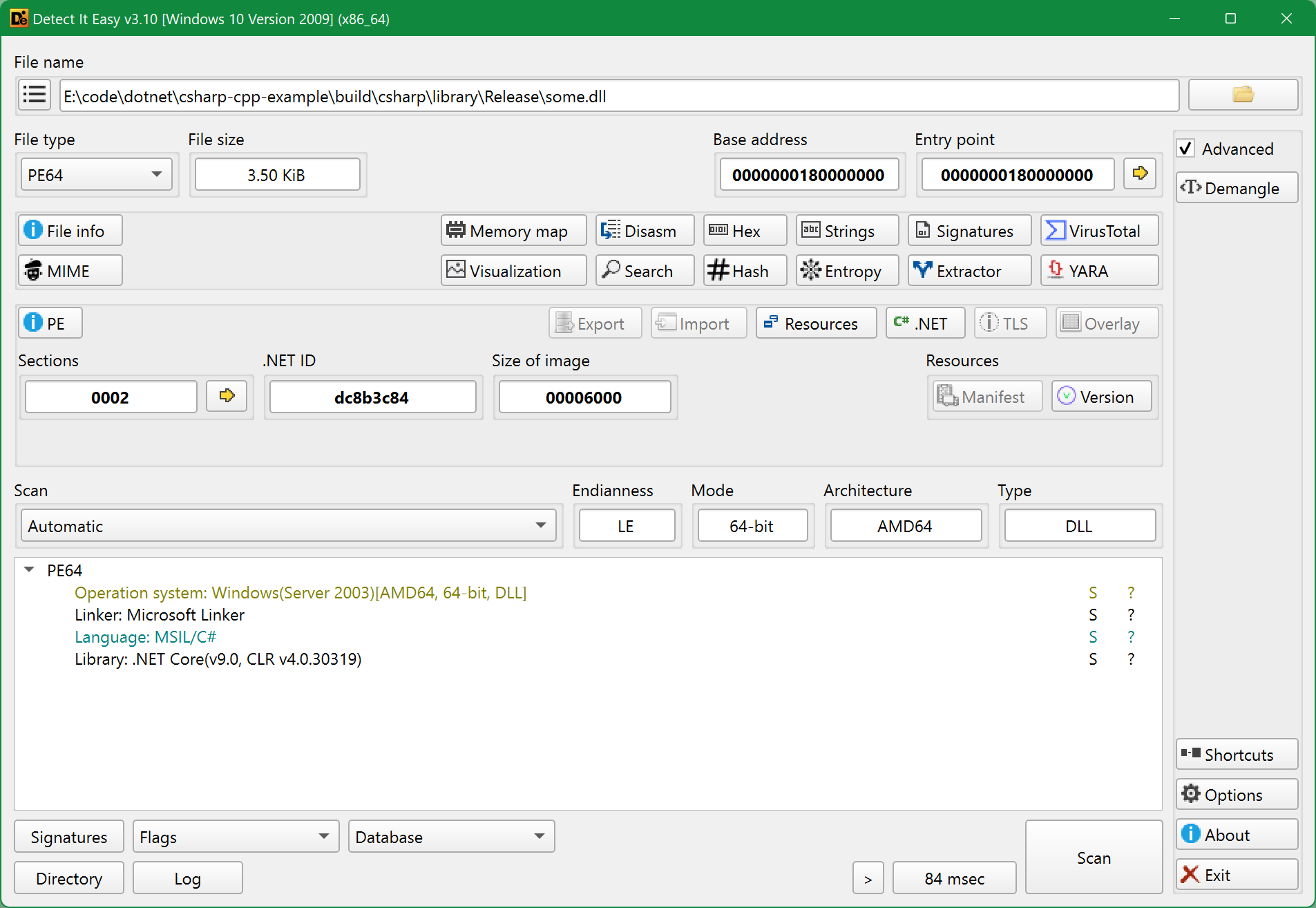
Note that from now on you’ll have to use exactly a Visual Studio generator for configuring the project, as CMake supports C# only with those. Which automatically means that you won’t be able to use CMake to handle .NET projects on platforms other than Windows, since Visual Studio generators are only(?) available on Windows.
CMake generator platform
Some guides tell you to perform the following ritual for setting the CMAKE_GENERATOR_PLATFORM:
if(NOT DEFINED CMAKE_GENERATOR_PLATFORM OR CMAKE_GENERATOR_PLATFORM STREQUAL "")
    message(WARNING
        "CMAKE_GENERATOR_PLATFORM isn't set, defaulting it to AnyCPU"
    )
    string(APPEND CMAKE_CSharp_FLAGS " /platform:AnyCPU")
    set(CMAKE_GENERATOR_PLATFORM "AnyCPU")
elseif(CMAKE_GENERATOR_PLATFORM STREQUAL "x64")
    string(APPEND CMAKE_CSharp_FLAGS " /platform:x64")
elseif(CMAKE_GENERATOR_PLATFORM STREQUAL "Win32")
    string(APPEND CMAKE_CSharp_FLAGS " /platform:x86")
else()
    message(WARNING
        "Generator platform is set to ${CMAKE_GENERATOR_PLATFORM}, "
        "which is not supported by managed projects, defaulting to AnyCPU"
    )
    string(APPEND CMAKE_CSharp_FLAGS " /platform:AnyCPU")
    set(CMAKE_GENERATOR_PLATFORM "AnyCPU")
endif()
but CMake seems to figure out these things on its own just fine, so I did not use that in my project. Moreover, if you try to provide some unexpected value like -DCMAKE_GENERATOR_PLATFORM=ololo on running CMake configuration, then it will fail on project() line with:
CMake Error at CMakeLists.txt:3 (project):
  Failed to run MSBuild command:

    D:/programs/vs/vs2022/MSBuild/Current/Bin/amd64/MSBuild.exe

  to get the value of VCTargetsPath:

    MSBuild version 17.14.18+a338add32 for .NET Framework
    Build started 27.10.2025 11:34:47.

    Project "E:\code\dotnet\csharp-cpp-example\application-csharp\build\CMakeFiles\4.1.0\VCTargetsPath.vcxproj" on node 1 (default targets).
    D:\programs\vs\vs2022\MSBuild\Current\Bin\amd64\Microsoft.Common.CurrentVersion.targets(843,5): error : The BaseOutputPath/OutputPath property is not set for project 'VCTargetsPath.vcxproj'.  Please check to make sure that you have specified a valid combination of Configuration and Platform for this project.  Configuration='Debug'  Platform='ololo'. You may be seeing this message because you are trying to build a project without a solution file, and have specified a non-default Configuration or Platform that doesn't exist for this project. [E:\code\dotnet\csharp-cpp-example\application-csharp\build\CMakeFiles\4.1.0\VCTargetsPath.vcxproj]
    Done Building Project "E:\code\dotnet\csharp-cpp-example\application-csharp\build\CMakeFiles\4.1.0\VCTargetsPath.vcxproj" (default targets) -- FAILED.
So apparently those lines with CMAKE_GENERATOR_PLATFORM checks should be placed before the project(), and I tried that, but then it just failed in a different way:
CMake Error at CMakeLists.txt:22 (project):
  Failed to run MSBuild command:

    D:/programs/vs/vs2022/MSBuild/Current/Bin/amd64/MSBuild.exe

  to get the value of VCTargetsPath:

    MSBuild version 17.14.18+a338add32 for .NET Framework
    Build started 27.10.2025 11:36:05.

    Project "E:\code\dotnet\csharp-cpp-example\application-csharp\build\CMakeFiles\4.1.0\VCTargetsPath.vcxproj" on node 1 (default targets).
    D:\programs\vs\vs2022\MSBuild\Microsoft\VC\v170\Microsoft.CppBuild.targets(459,5): error MSB8013: This project doesn't contain the Configuration and Platform combination of Debug|Win32. [E:\code\dotnet\csharp-cpp-example\application-csharp\build\CMakeFiles\4.1.0\VCTargetsPath.vcxproj]
    Done Building Project "E:\code\dotnet\csharp-cpp-example\application-csharp\build\CMakeFiles\4.1.0\VCTargetsPath.vcxproj" (default targets) -- FAILED.
So AnyCPU is apparently no good either, and hardcoding it to x64 doesn’t feel too good, especially given that, like I said, CMake already sets all these things just fine on its own. So I really see no point in doing this ritual dance.
C# application
Last part of the base project is C# application:
./csharp/application/
├── src
│   └── Program.cs
└── CMakeLists.txt
Later in the article this application will be used as an example of an actual user project - something that would be using our intermediate C# library, which in turn would be bringing-in our main C++ library functionality. But for now the only thing this application does is calling our C# library’s only function, which merely returns a string of text.
The Program.cs source file:
using System;
using System.CommandLine;
using System.Text;
using System.IO;
using Lbr;

namespace Applctn;

class Program
{
    static int Main(string[] args)
    {
        Console.WriteLine($"Something from C# library | {Some.getSome()}");

        return 0;
    }
}
And the CMake project file is just this:
add_executable(applctn)

target_sources(applctn
    PRIVATE
        src/Program.cs
)

target_link_libraries(applctn
    PRIVATE
        some # that's the C# library
)
Almost boring, right? All the same things you would’ve done for a regular C++ application. But don’t forget that it’s the upper-level CMakeLists.txt who enables CSharp language and sets the required variables for .NET SDK and language versions.
If you won’t do target_link_libraries() to link the some library target, then you’ll get the following build error:
error CS0246: The type or namespace name 'Lbr' could not be found (are you missing a using directive or an assembly reference?)
Speaking about the namespaces, if both the application and the library source files were using:
namespace Applctn;
then calling Some.getSome() would have just worked, as it would be in the same namespace, but since the library has its own namespace:
namespace Lbr;
the application needs to declare the use of it:
using Lbr;
Building the application will result in the following applctn.exe binary:
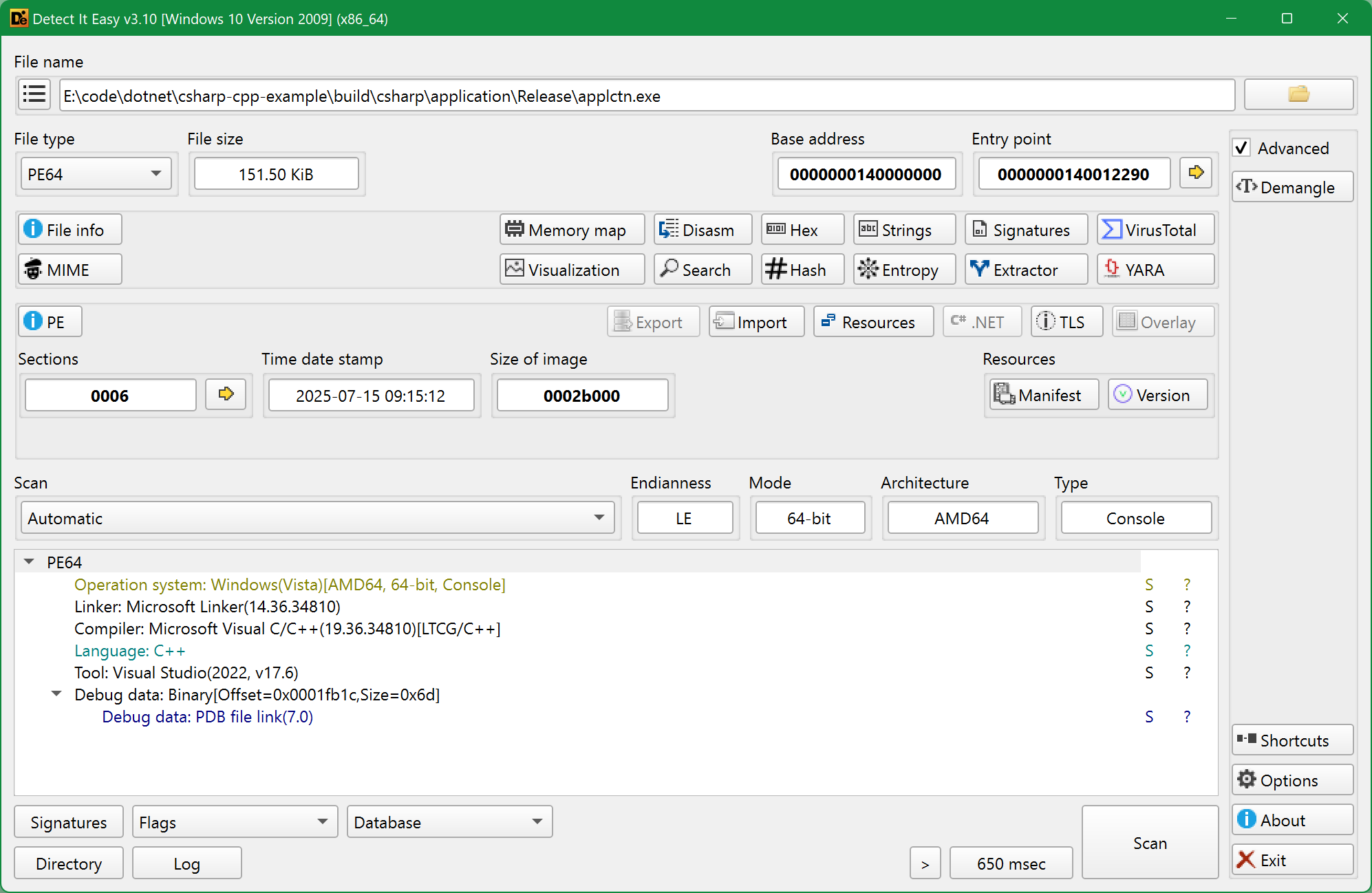
Seeing C++ here might be surprising, but actually it only means that it’s this particular executable who is a C++ program, or rather it is more correct to call it it a “launcher”, and the actual “application” is in the applctn.dll:
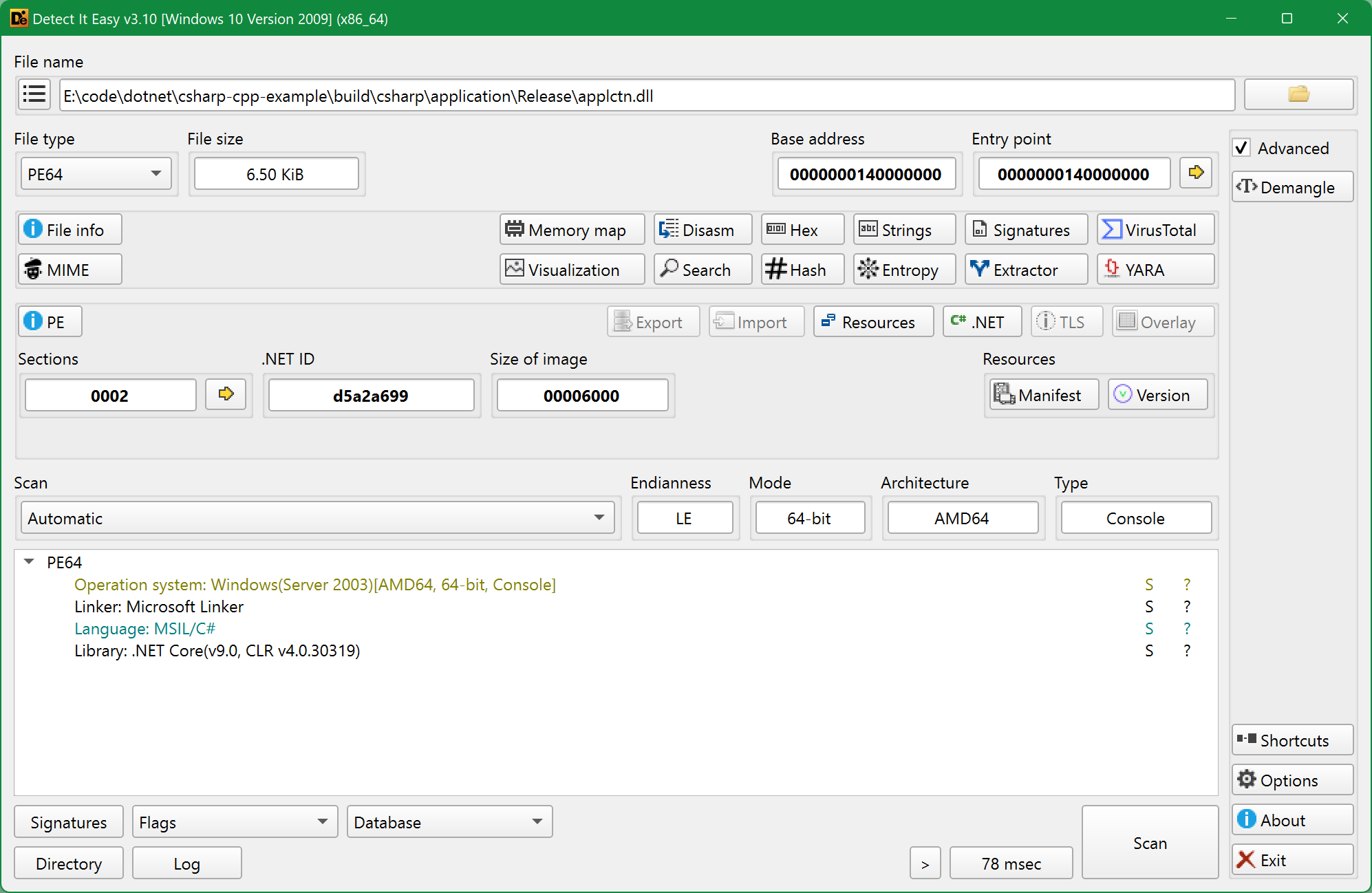
which is a C# assembly, as expected.
If you did not know this before, the .exe launcher isn’t even needed, you can just as well simply run applctn.dll directly with dotnet:
$ dotnet ./applctn.dll
Referencing NuGet packages
To make the application project a little bit more interesting, let’s add a dependency on some NuGet package, for example let’s use CLI arguments parsing from System.CommandLine assembly:
set_target_properties(applctn
    PROPERTIES
        VS_PACKAGE_REFERENCES "System.CommandLine_2.0.0-rc.1.25451.107"
        DEBUG_POSTFIX "${CMAKE_DEBUG_POSTFIX}"
)
It didn’t work for me with a bare System.CommandLine value, so I had to specify the exact package version (separated with _ after the package name). I also tried to use a wildcard like System.CommandLine_2.0.0-*, but that didn’t work either (although it should have?).
Having added this package, we can now make the application accept --something/-s CLI argument like this:
static int Main(string[] args)
{
    Option<string> someOption = new("--something", "-s")
    {
        Description = "Some thing to pass to the application"
    };

    RootCommand rootCommand = new("applctn")
    {
        Description = "Just some application"
    };
    rootCommand.Options.Add(someOption);

    var parseResult = rootCommand.Parse(args);
    if (parseResult.Errors.Count != 0)
    {
        foreach (var parseError in parseResult.Errors)
        {
            Console.Error.WriteLine(parseError.Message);
        }

        return 1;
    }

    var smOpt = parseResult.GetValue(someOption);
    if (!string.IsNullOrEmpty(smOpt))
    {
        Console.WriteLine($"Something that was passed as CLI argument: {smOpt}");
    }

    Console.WriteLine($"Something from C# library | {Some.getSome()}");

    return 0;
Calling C++ from C#
Okay, all that was just some light foreplay with a bit of fingering, and now we are getting to the real action.
The main problem with trying to use a native C++ library in a .NET/C# project is that it simply isn’t possible: you cannot call a native (unmanaged) code from a managed code, or at least you cannot do that directly.
But there are two ways of how it can be done indirectly:
- Via Platform Invoke (P/Invoke), where it loads an intermediate C API library, which is a wrapper library for the original native C++ library;
- Via C++/CLI, where it involves a yet another C++ library, but that one is a managed library, which, again, is a wrapper for the original native C++ library.
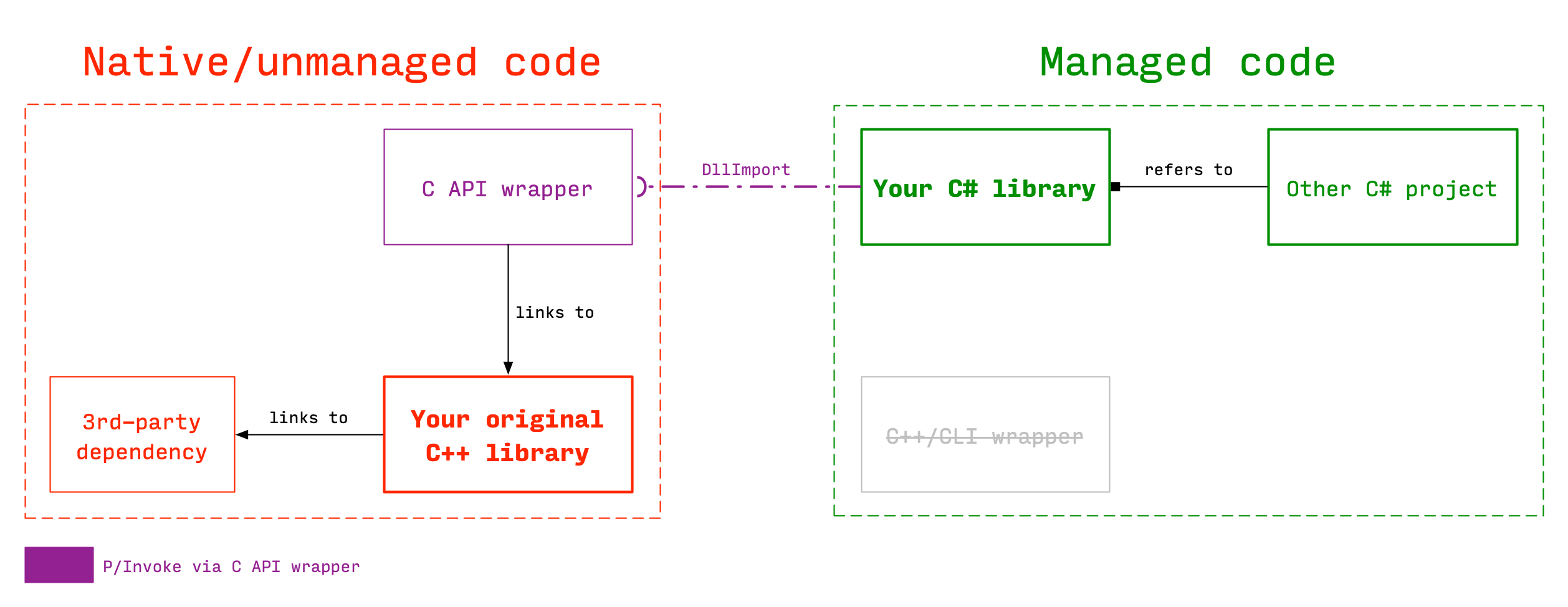
It probably sounds rather confusing, so here’s a schematic visualization:
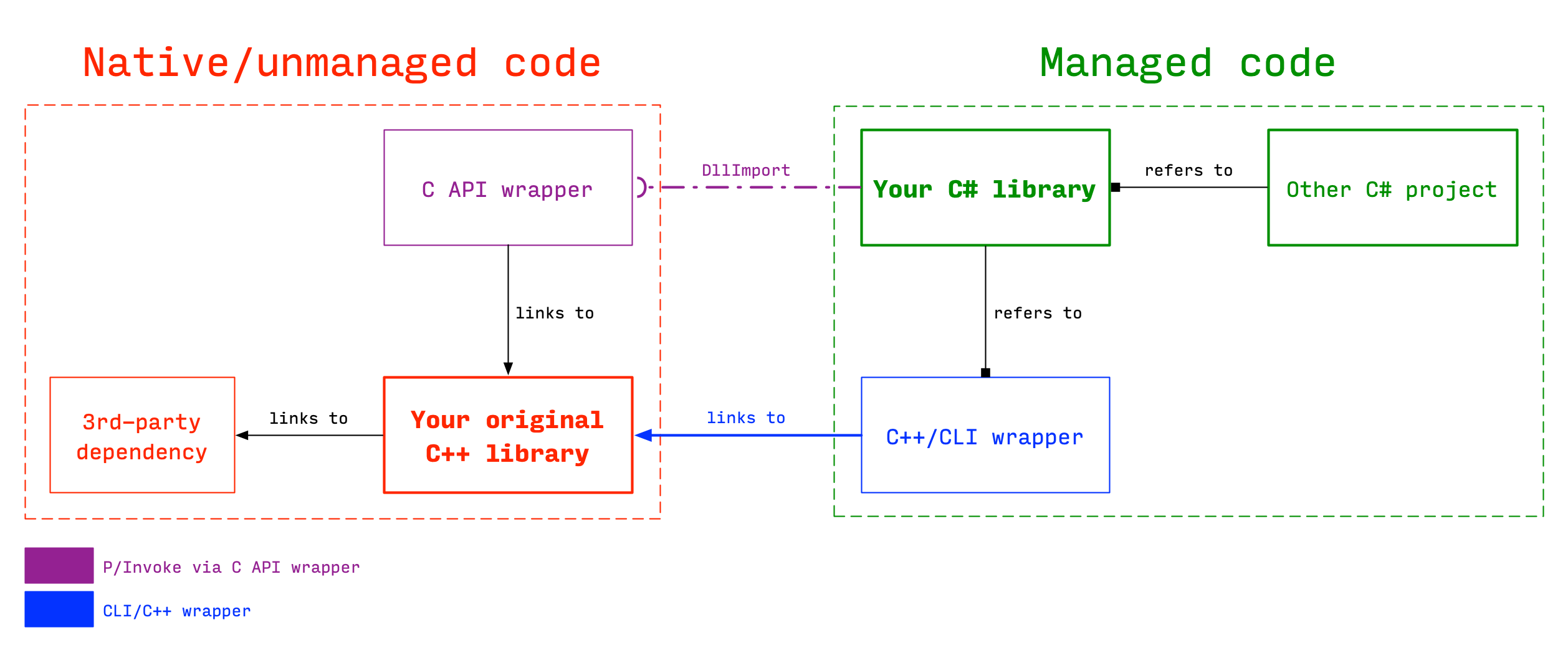
So, one way or another, there is going to be a wrapper involved (not to mention that our C# library is actually a kind of intermediary/wrapper itself). Moreover, you can even combine both ways in the same project/library (should you ever have a need to do something like that).
P/Invoke
C API wrapper
First thing you will need to do is create a C API wrapper. Why C - because (unlike C++?) it allows calling its functions from other languages (via FFI?), such as C# in our case.
The wrapper files are here:
./cpp/library-c-api/
├── src
│   └── thingy-c-api.cpp
└── CMakeLists.txt
The CMakeLists.txt project file is quite simple, the only noteworthy part is linking to the original C++ library:
add_library(thingy-c-api SHARED) # has to be `SHARED`, since this is for .NET (and in general for FFI?)

target_sources(thingy-c-api
    PRIVATE
        src/thingy-c-api.cpp
)

target_link_libraries(thingy-c-api
    PRIVATE
        thingy
)
And the thingy-c-api.cpp source file is this:
#include <Thingy/thingy.h>

extern "C" __declspec(dllexport) const char *do_thingy()
{
    // to keep the string in memory it needs to be `static`, otherwise it will be destroyed
    // after `do_thingy()` does the return, so in C# that would be a pointer to invalid memory
    static std::string thng = dpndnc::doThingy();

    // return C-style string
    return thng.c_str();
}
Here it sets __declspec(dllexport) for the function right away, because this library is meant to be dynamically linked. But be aware that this is only for Windows/MSVC, as you’ll see later.
And then comes the C++/C types juggling, because original doThingy() function returns std::string, which in case of C has to be “converted” to a C string. So essentially this is what makes it a wrapper - original C++ functions are quite literally wrapped into new functions, whose only purpose is to convert the types to make the functions callable/usable from C#.
Next thing of note is that if we leave thingy.h as it is, then in case when thingy target will be configured as a STATIC library, the thingy_EXPORTS compile definition won’t be set, so DLLEXPORT will get defined as __declspec(dllimport) instead of __declspec(dllexport), which will cause the following linker error:
thingy-c-api.obj : error LNK2019: unresolved external symbol "__declspec(dllimport) class std::basic_string<char,struct std::char_traits<char>,class std::allocator<char> > __cdecl dpndnc::doThingy(void)" (__imp_?doThingy@dpndnc@@YA?AV?$basic_string@DU?$char_traits@D@std@@V?$allocator@D@2@@std@@XZ) referenced in function do_thingy_c [E:\code\csharp-cpp-example\build\cpp\library-c-api\thingy-c-api.vcxproj]
and also this warning on building the library itself:
warning C4273: 'dpndnc::doThingy': inconsistent dll linkage [E:\code\csharp-cpp-example\build\cpp\library\thingy.vcxproj] E:\code\csharp-cpp-example\cpp\library\include\Thingy\thingy.h(22,27):
      see previous definition of 'dpndnc::doThingy'
So you’ll either need to hardcode thingy library type to SHARED, or remove the __declspec(dllimport) definition:
-#else
-    // import on using the created DLL (when using in projects)
-    #define DLLEXPORT __declspec(dllimport)
+// that does nothing good when this header is included in other libraries within the project
+//#else
+//    // import on using the created DLL (when using in projects)
+//    #define DLLEXPORT __declspec(dllimport)
or maybe there could have been a separate public header, something like thingy-for-wrappers.h? Not sure what’s best, but since this native C++ library isn’t really meant to be installed and used standalone outside of this project, I decided to go with the single “crippled” public header.
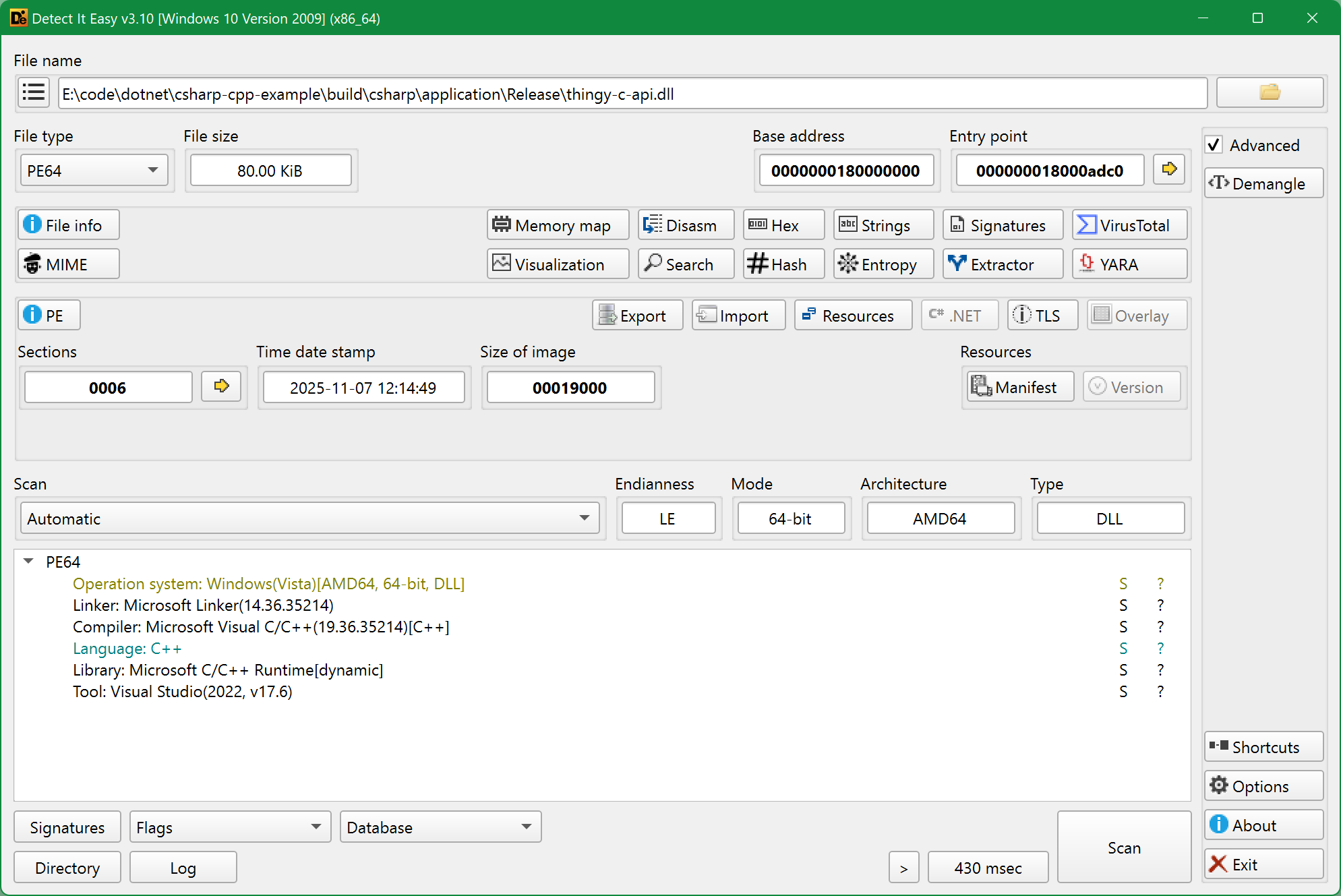
After the build resulting thingy-c-api.dll will be this:
Importing C API wrapper DLL
Once you make the C API wrapper, in order to use P/Invoke for calling its functions, you will need to declare C# functions with the same name and signature and add DllImport attribute to those declarations. That attribute will contain the file name of the wrapper library:
[DllImport("thingy.dll")]
private static extern IntPtr do_thingy();
The hardcoded thingy.dll file name value got me some Vietnam flashbacks from the Android wrapper, where it was also expecting to find the library under a certain hardcoded file name, which means that you cannot apply Debug postfix to it. However, I decided to keep the postfix and instead used a conditional compilation directive, like this:
#if DEBUG
    [DllImport("thingy-c-apid.dll")]
#else
    [DllImport("thingy-c-api.dll")]
#endif
    private static extern IntPtr do_thingy();
One other place where the Debug postfix would cause troubles is if you’d try to add a reference to the wrapper with VS_DOTNET_REFERENCE_*:
set_target_properties(some
    PROPERTIES
        VS_DOTNET_REFERENCE_thingycapi "/path/to/thingy-c-api.dll" # can't use `$<TARGET_FILE:thingy-c-api>`
)
Since this target property does not support generator expressions (and also because you can’t really do if (CMAKE_BUILD_TYPE STREQUAL "Debug") with Visual Studio generator), you’d have to unset the Debug postfix for the thingy-c-api target. But even then, adding a reference to thingy-c-api.dll doesn’t seem to do anything useful, so I just didn’t do it and kept the postfix.
Also, surprisingly, there is no(?) need to link to the wrapper:
# doesn't seem to do anything useful, and everything seems to work fine without this
# (unless you are going to use `$<TARGET_RUNTIME_DLLS:some>` to copy DLLs)
target_link_libraries(some
    PRIVATE
        thingy-c-api
)
Anyway, that was about how the function is imported from C API wrapper into C# library, and now we can call it in C#:
public static string DoThingy()
{
    return Marshal.PtrToStringAnsi(do_thingy());
}
The Marshal.PtrToStringAnsi() converts (marshals) the return value of the wrapper function from a C string pointer to a “normal” string in C#. On Windows(?) that works only for “simple” ASCII strings, but more on that later.
If you were wondering whether the static keyword was really needed inside the do_thingy() in the wrapper sources, then if you did it differently back there:
extern "C" __declspec(dllexport) const char *do_thingy()
{
    return dpndnc::doThingy().c_str();
}
then the return value would get fucked, and this is what you’d see trying to call this function in C#:
Something from C++ library through C# library | YYYYYYYYYYYYYYYYYYYYYYYYYYYYYYYYYYYYO
That is because without static keyword the imported function return value will point (IntPtr) to an address in memory which almost most certainly will contain some garbage at that point. And marking the variable with static will preserve the string value in memory.
C++/CLI CLR
An alternative to P/Invoke is to create a, yet again, wrapper, but this time it will be a C++ wrapper library, not C. The point of adding a yet another C++ library and how it is different from the original native C++ library is that this one will be a managed library/assembly, because it will be compiled with CLR, which will enable using it from C#.
At first I thought that this approach is better than P/Invoke, but then I read the following statement in the Microsoft’s own documentation:
For new projects, we recommend exploring modern third-party alternatives such as https://github.com/dotnet/ClangSharp or https://www.swig.org/, which offer more flexibility and better alignment with current language and runtime capabilities.
Having briefly looked at both of those alternatives, I saw that both of them are… based on P/Invoke? So if you ask me, which way of calling C++ from C# is better after all, I really cannot say. Or at least I can say that when it comes to platforms other than Windows, then C++/CLI is simply not available on those, leaving P/Invoke the only available option.
C++ wrapper
The project files are these:
./cpp/library-clr/
├── src
│   └── thingy-clr.cpp
└── CMakeLists.txt
where the CMakeLists.txt is this:
add_library(thingy-clr SHARED) # has to be `SHARED`, since this is for .NET

target_sources(thingy-clr
    PRIVATE
        src/thingy-clr.cpp
)

target_link_libraries(thingy-clr
    PRIVATE
        thingy
)

set_target_properties(thingy-clr
    PROPERTIES
        COMMON_LANGUAGE_RUNTIME "" # or `netcore`?
)
The most important part here is setting COMMON_LANGUAGE_RUNTIME target property.
It probably should be set to netcore value instead, but Microsoft’s documentation isn’t very clear about that. It does say that with netcore the latest .NET Core will be used, so apparently this is to distinguish from the “classic” .NET Framework (whose latest version was 4.x), but it doesn’t say what variant of .NET will be used when /clr is provided with an empty string, so I can only guess that it will be “classic” .NET Framework.
At the same time, CMake documentation does say that with an empty string it will be “…using .NET Framework”, while with netcore it will be “…using .NET Core”, so then one should probably prefer netcore? I wasn’t sure, so I tried it with an empty string first.
The thingy-clr.cpp source code contains the following:
#include <msclr/marshal_cppstd.h>

#include <Thingy/thingy.h>

using namespace System;

// it probably doesn't have to be a class, but I was following a guide
// https://learn.microsoft.com/en-us/archive/blogs/borisj/interop-101-part-4
// and I didn't mind terribly
public ref class ThingyWrapperCLR
{
public:
    static String^ DoThingy()
    {
        std::string thng = dpndnc::doThingy();
        // using msclr
        return msclr::interop::marshal_as<String^>(thng);
        // or
        //return gcnew String(thng.c_str());
    }
};
As you can see, types converting/marshalling is involved here too.
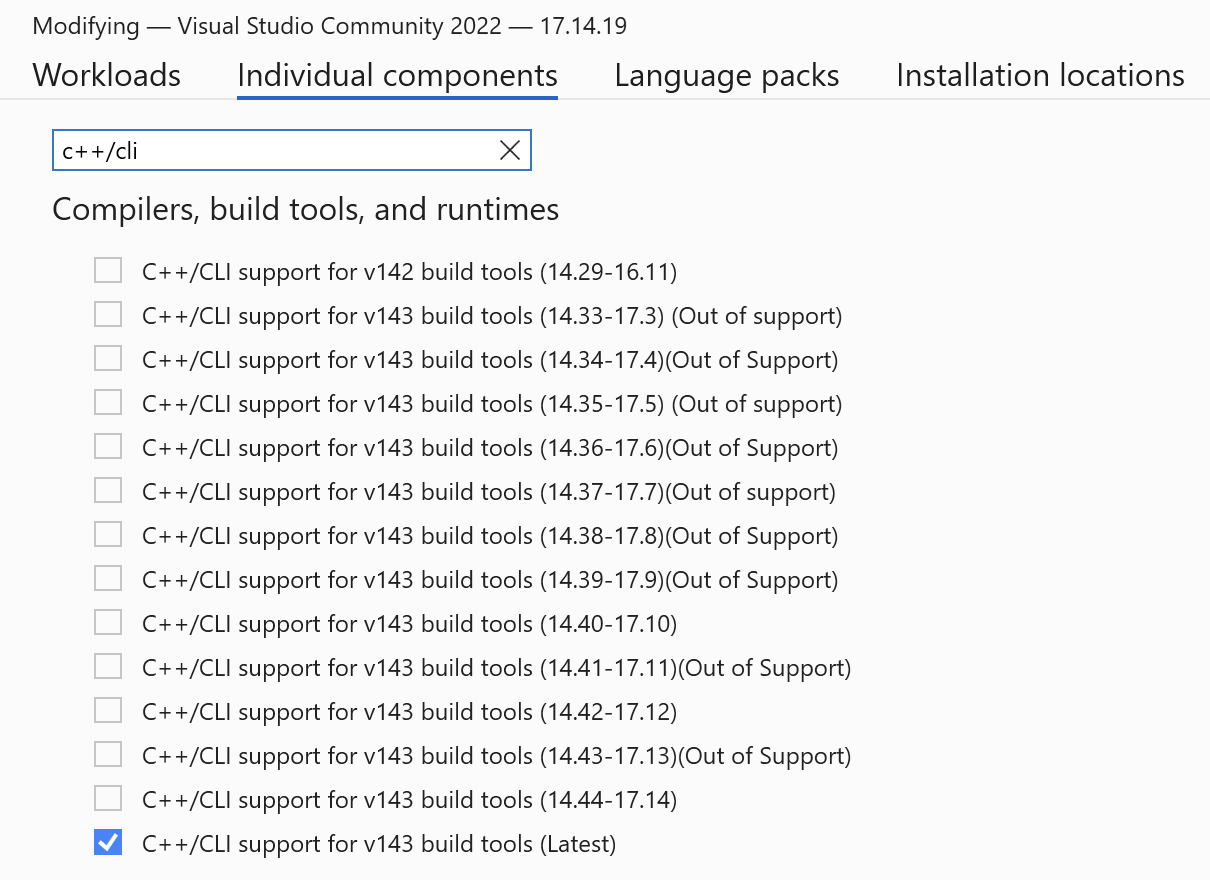
In case you don’t have it yet, to build the library you will need to install the C++/CLI component in Visual Studio installer:
Resulting thingy-clr.dll will be this:
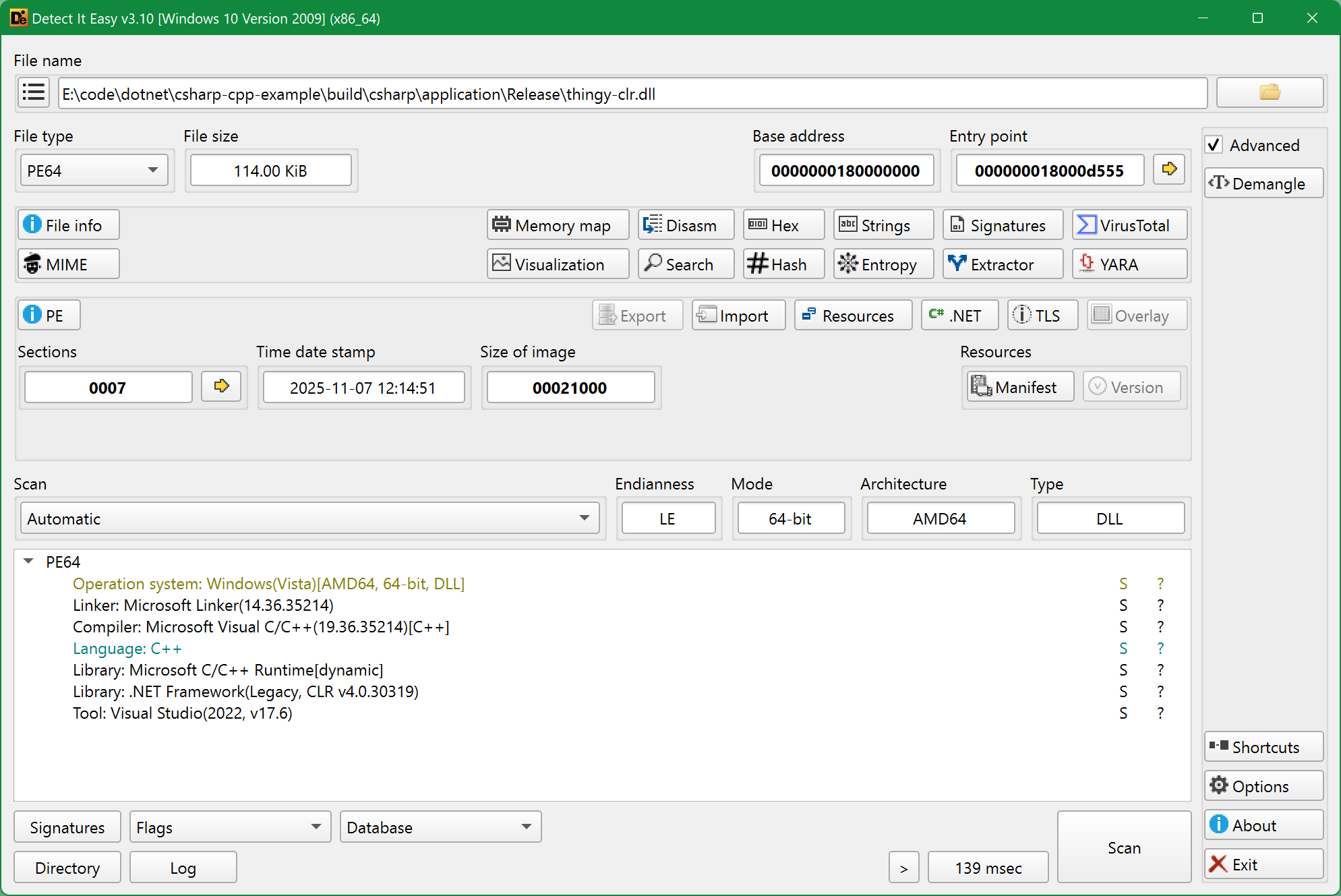
Interesting that it says “.NET Framework, Legacy”. Assuming that this is because of the COMMON_LANGUAGE_RUNTIME being set to an empty string, I then tried with netcore:
set_target_properties(thingy-clr
    PROPERTIES
        COMMON_LANGUAGE_RUNTIME "netcore"
)
And the build had failed right after that:
thingy-c-api.vcxproj -> E:\code\dotnet\csharp-cpp-example\build\cpp\library-c-api\Release\thingy-c-apid.dll
C:\Program Files\dotnet\sdk\9.0.304\Sdks\Microsoft.NET.Sdk\targets\Microsoft.NET.TargetFrameworkInference.targets(96,5): error NETSDK1013: The TargetFramework value '' was not recognized. It may be misspelled. If not, then the TargetFrameworkIdentifier and/or TargetFrameworkVersion properties must be specified explicitly.
but that was simply because it was expecting CMAKE_DOTNET_TARGET_FRAMEWORK to be set:
set(CMAKE_DOTNET_TARGET_FRAMEWORK "net9.0")
which back at the moment was happening in the C# part of the project, so I just moved it (and the rest of the .NET-related variables) to the top-level CMakeLists.txt. Then the build succeeded, and this time the resulting thingy-clr.dll was reporting modern .NET assembly (although with VB.NET as compiler, he-he):
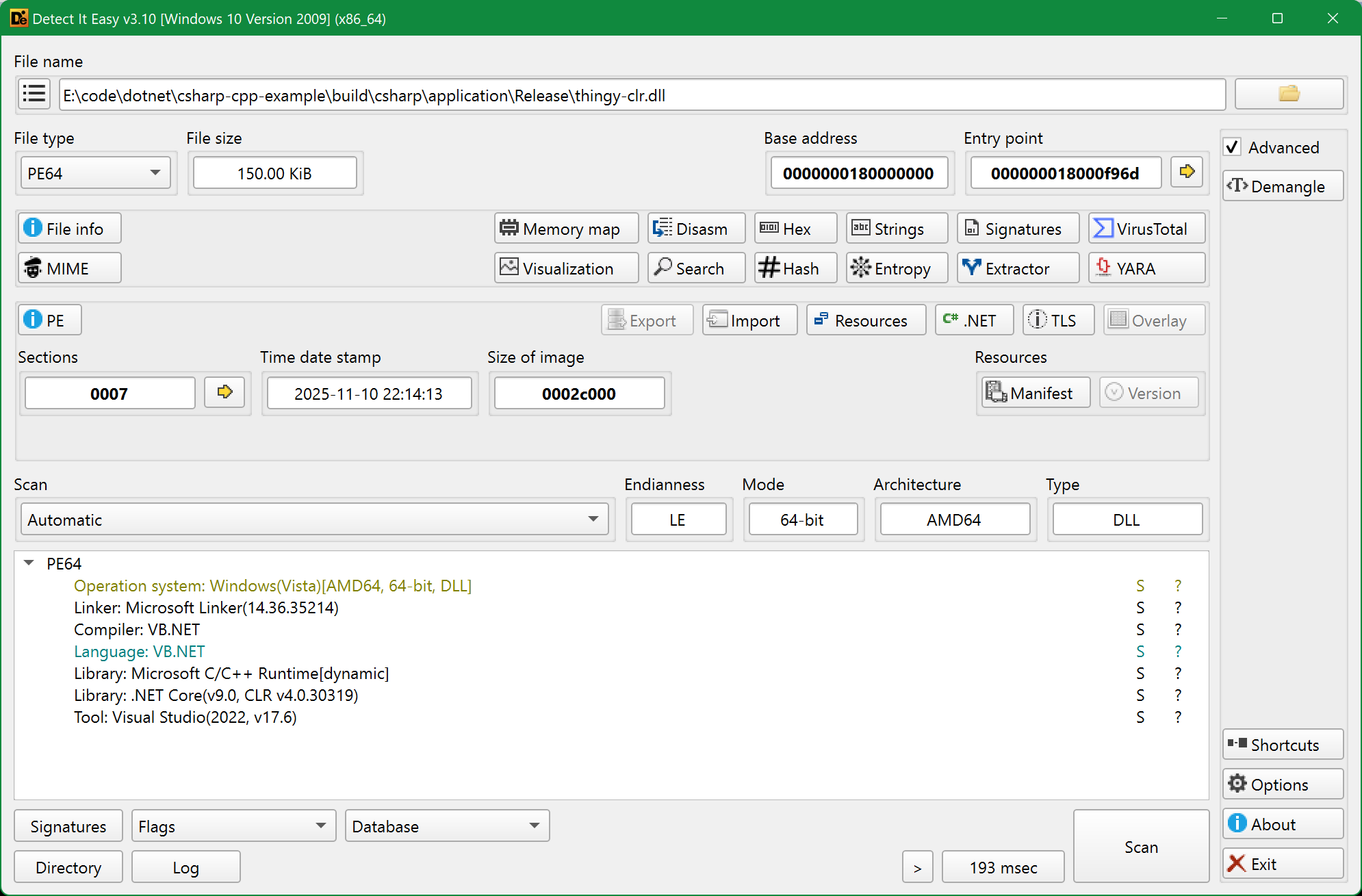
It is worth to mention that the final application works fine with thingy-clr.dll being built either as modern .NET assembly or as classic .NET Framework assembly - doesn’t seem to make any difference (aside from the 36 KB binary size increase in the modern one), but that’s probably because so far I’ve only implemented some simple functionality which works equally fine in both SDKs.
Linking C++ wrapper DLL
Or perhaps a more correct term would be “referencing the C++ wrapper assembly”, but in CMake it is done exactly as linking:
target_link_libraries(some
    PRIVATE
        thingy-clr
)
That’s it, nothing else needs to be done with CMake here (aside from copying DLLs, but more on that later). The wrapper is ready to be used in C#:
// new function in C# library
public static string DoThingyCLR()
{
    // to call a function from C++ wrapper
    return ThingyWrapperCLR.DoThingy();
}
Putting it all together
The application’s project file does not need any modifications, as it already contains linking/referencing to our C# library.
Calling both wrappers through the C# library in the application’s Program.cs looks like this:
// simple C# function from our C# library
Console.WriteLine(
    $"Something from C# library | {Some.getSome()}"
);

// P/Invoke with C API wrapper
Console.WriteLine(
    $"Something from C++ library through C# library via P/Invoke | {Some.DoThingyC()}"
);

// C++/CLI CLR wrapper
Console.WriteLine(
    $"Something from C++ library through C# library via C++/CLI CLR | {Some.DoThingyCLR()}"
);
As I promised - both ways of using a native C++ library combined in the same C# project.
Fighting with encoding
It’s all nice and dandy until you put some non-ASCII characters into the strings inside C++ library:
// adding a bit of Cyrillic text and some emojis to spice things up
const std::string thingyString = "some кабы не было зимы ❄️ в городах 🏢 и сёлах 🏠 text";
Trying to use the library now, you will get the following bizarre console output in your application (at the very least, that was the case for me on Windows):
some кабы не было зимы â„ï¸ Ð² городах 🢠и Ñёлах ðŸ text
or something like:
some кабы не было зимы ❄️ в городах 🏢 и сёлах 🏠 text
Resolving this issue requires a different set of changes for each wrapper.
Marshalling UTF-8 strings via C API
In case of the C API wrapper I used the wrong marshalling function - instead of Marshal.PtrToStringAnsi() it should be Marshal.PtrToStringUTF8().
For a bit more complex scenario, when, say, you need to read a JSON file in C#, pass it to native C++ library for processing (that’s what JsonCpp dependency was for) and return the result back to C#, the appropriate marshalling function for passing the JSON string from C# to C++ will be Marshal.StringToCoTaskMemUTF8, and to get the result back it will be Marshal.PtrToStringUTF8() again.
But even after making those changes you will likely get this even less readable output in the console (mostly(?) occurs on Windows):
some ???? ?? ???? ???? ?? ? ??????? ?? ? ????? ?? text
Now that has to do with the console code page / encoding, and for Console.WriteLine() output this is controlled with Console.OutputEncoding:
Console.OutputEncoding = Encoding.UTF8;
What’s peculiar though is that for Git BASH this will persist in the current console/terminal session even if you remove this line and rebuild the project from a complete scratch - it will still print the UTF-8 strings with no encoding issues, as if Console.OutputEncoding was still set to UTF-8. But if you launch the same re-built executable from a new Git BASH session, then it will again print the ??????? things. At the same time, PowerShell does not have this behaviour: in there it will reflect the changes related to Console.OutputEncoding after every build, as expected.
Finally, to make sure that this is really just about the console output, you can try saving returned strings to a text file and see for yourself that UTF-8 is preserved just fine, no matter what is set for Console.OutputEncoding.
Marshalling UTF-8 strings via C++/CLI
In this wrapper the problem is that System::String in .NET is UTF-16, so instead of returning std::string it should be returning std::wstring:
std::string thng = dpndnc::doThingy();

// convert from UTF-8 to UTF-16 (System::String)
std::wstring_convert<std::codecvt_utf8_utf16<wchar_t>> converter;
std::wstring thngWstring = converter.from_bytes(thng);

return msclr::interop::marshal_as<String^>(thngWstring);
In that other more complex scenario of passing JSON string from C# to C++ and getting the processed result back, we first need to marshal String^ into std::wstring, otherwise UTF-8 strings will get fucked, which is exactly what is happening here. So instead of getting fucked it should first go through the UTF-16/UTF-8 conversion:
// convert from System::String (UTF-16) to UTF-8
std::wstring_convert<std::codecvt_utf8_utf16<wchar_t>> converter;
std::wstring jsnWstring = msclr::interop::marshal_as<std::wstring>(jsn);
std::string jsnString = converter.to_bytes(jsnWstring);
and then converted std::string will get passed to the native C++ library for processing, and the processed string will be converted back to UTF-16 and marshalled to C#.
While trying this out on different Windows hosts, I noticed that in x64-based Windows environment (running on an actual “physical” machine with x64-based CPU) there was no need to do the UTF conversion, so I could just keep this:
std::string bestBoobs = dpndnc::whoHasTheBestBoobs(
    msclr::interop::marshal_as<std::string>(jsn)
);
return msclr::interop::marshal_as<String^>(bestBoobs);
However, in ARM-based Windows environment (running in a Parallels virtual machine on an ARM-based Mac) the string was getting fucked, and there I had to convert it with std::wstring_convert to make it work.
Installation
Installing C# library
There is little to none point in doing a proper CMake installation for the C# library, because chances that your customers/users will be using CMake to handle their C# projects are very slim. So then the entire installation would be just this:
# (if you haven't included it already)
# definitions of CMAKE_INSTALL_LIBDIR, CMAKE_INSTALL_INCLUDEDIR and others
include(GNUInstallDirs)

install(TARGETS some
    # should be no need to set these, they get default values from GNUInstallDirs
    #RUNTIME DESTINATION ${CMAKE_INSTALL_BINDIR} # bin
    #LIBRARY DESTINATION ${CMAKE_INSTALL_LIBDIR} # lib
    #ARCHIVE DESTINATION ${CMAKE_INSTALL_LIBDIR} # lib
)
But trying to build the usual install target will fail:
$ cmake --build . --config Release --target install
...
C:\Program Files\dotnet\sdk\9.0.304\Sdks\Microsoft.NET.Sdk\targets\Microsoft.PackageDependencyResolution.targets(266,5): error NETSDK1004: Assets file 'E:\code\dotnet\csharp-cpp-example\build\csharp\application\obj\project.assets.json' not found. Run a NuGet package restore to generate this file. [E:\code\dotnet\csharp-cpp-example\build\csharp\application\applctn.csproj]
C:\Program Files\dotnet\sdk\9.0.304\Sdks\Microsoft.NET.Sdk\targets\Microsoft.PackageDependencyResolution.targets(266,5): error NETSDK1004: Assets file 'E:\code\dotnet\csharp-cpp-example\build\csharp\library\obj\project.assets.json' not found. Run a NuGet package restore to generate this file. [E:\code\dotnet\csharp-cpp-example\build\csharp\library\some.csproj]
By the looks of it, the dotnet restore command isn’t run in this case, so you would need to first run the “default” build and only then --target install:
$ cmake --build . --config Release
$ cmake --build . --config Release --target install
The result, however, won’t be exactly satisfactory:
../install/
├── bin
│   └── some.dll
└── lib
    ├── some.deps.json
    ├── some.dll
    └── thingy-clr.dll
Why the hell some.dll is duplicated in lib? Why thingy-clr.dll isn’t in bin? What this .deps.json file is for? And where is thingy-c-api.dll? Who the fuck knows Actually, I know - the RUNTIME DESTINATION does need to be explicitly set, as it turns out:
install(TARGETS some
    RUNTIME DESTINATION ${CMAKE_INSTALL_BINDIR} # bin
)
That will get rid of the redundant lib folder contents (why - who the fuck knows). And then adding the explicit installation of runtime dependencies:
install(
    FILES $<TARGET_RUNTIME_DLLS:some>
    DESTINATION ${CMAKE_INSTALL_BINDIR}
)
will get the missing DLLs into bin:
../install/
└── bin
    ├── some.dll
    ├── thingy-c-api.dll
    └── thingy-clr.dll

$ du -hs ../install/bin
212K
or, if thingy was built as a SHARED library:
../install/
└── bin
    ├── some.dll
    ├── thingy-c-api.dll
    ├── thingy-clr.dll
    └── thingy.dll

$ du -hs ../install/bin
168K
If anything, the full building/installing commands are these:
$ cd /path/to/csharp-cpp-example/
$ mkdir build && cd $_
$ cmake -G "Visual Studio 17 2022" -DCMAKE_INSTALL_PREFIX="../install" \
    -DCMAKE_TOOLCHAIN_FILE="$VCPKG_ROOT/scripts/buildsystems/vcpkg.cmake" \
    -DVCPKG_APPLOCAL_DEPS=0 \
    ..
$ cmake --build . --config Release
$ cmake --build . --config Release --target install
And then you can pack the installation prefix (../install/) for distribution. And while at it, maybe consider doing that in a form of a NuGet package - your customers will be happy.
Installing C# application
There is even less than zero reasons to do a CMake-based installation for a C# application, because while here in this particular example that application is a part of the project, in the real world it will likely be your customers/users own C# project, which almost most definitely won’t be handled with CMake.
However, since we are such curious young men, let still take a look at how one would approach the process of installing a C# application with CMake.
The problem with this task is that default CMake installation facilities are quite useless for this purpose. Just take a look at the minimum set of what is required for the resulting application to be able to run (you can see the full list inside your /path/to/csharp-cpp-example/build/csharp/application/Release/):
./build/csharp/application/Release/
...
├── applctn.dll
├── applctn.exe
├── applctn.runtimeconfig.json
├── some.dll
├── System.CommandLine.dll
├── thingy-c-api.dll # if you did `add_custom_command()` to copy runtime dependencies
├── thingy-clr.dll
└── thingy.dll # if `thingy` library was build as SHARED
Naively trying to do the standard installation:
install(TARGETS applctn
   RUNTIME DESTINATION ${CMAKE_INSTALL_BINDIR}
)
will only give you this:
../install/
└── bin
    └── applctn.exe
Adding the installation of runtime dependencies:
install(
    FILES $<TARGET_RUNTIME_DLLS:applctn>
    DESTINATION ${CMAKE_INSTALL_BINDIR}
)
will improve the situation to some degree:
../install/
└── bin
    ├── applctn.exe
    ├── some.dll
    ├── thingy-c-api.dll
    ├── thingy-clr.dll
    └── thingy.dll # if is was build as SHARED
but the resulting “bundle” will still be missing several dependencies and files, the important of which being the actual “application” - applctn.dll.
Certainly, all of the missing files can be hardcoded to be installed one by one, but this is not the way. So I would say, this is the end: CMake just isn’t meant for installing of a C# application.
What I would do instead is simply pack the /path/to/csharp-cpp-example/build/csharp/application/Release/ contents, and that would make a good enough distribution-ready package. Well, not yet, because right now it is missing some runtime dependencies, namely thingy-c-api.dll and thingy.dll (if it was built as SHARED), so you’ll need to do this crutch:
# by some mysterious logic `thingy-clr.dll` gets copied on its own,
# but the rest of DLLs are not, hence this crutch
add_custom_command(
   TARGET applctn
   POST_BUILD
   COMMAND ${CMAKE_COMMAND} -E copy_if_different
       $<TARGET_RUNTIME_DLLS:applctn>
       $<TARGET_FILE_DIR:applctn>
   COMMAND_EXPAND_LISTS
   COMMENT "Copying the application dependencies DLLs"
)
This could have been done in the C# library project file instead, but I think it better belongs with the application.
To summarize, here are the commands to build and run the example application:
$ cd /path/to/csharp-cpp-example/
$ mkdir build && cd $_
$ cmake -G "Visual Studio 17 2022" \
    -DCMAKE_TOOLCHAIN_FILE="$VCPKG_ROOT/scripts/buildsystems/vcpkg.cmake" \
    -DVCPKG_APPLOCAL_DEPS=0 \
    ..
$ cmake --build . --config Release
$ ./csharp/application/Release/applctn.exe -j ./csharp/application/Release/grils.json
Platforms other than Windows
As you might have noticed, so far it has all been somewhat implicitly just about Windows. But what about other platforms? Our native C++ library is cross-platform, and .NET is no longer a Windows-only framework either, so it should be possible to make them work together on outside of Windows environment too.
And it is possible (I’ve successfully built and run the project on Mac OS and GNU/Linux), but unfortunately not everything will work.
First thing, as it was already mentioned, C# is supported in CMake only on Windows, because it needs a Visual Studio generator. For instance, if you try to configure this project on Mac OS or GNU/Linux, it will fail:
CMake Error at /path/to/share/cmake/Modules/CMakeDetermineCSharpCompiler.cmake:5 (message):
  C# is currently only supported by Visual Studio generators.
So the C#/.NET parts will have to be handled with dotnet tool and .csproj files for both the library and the application. The C++ parts can still be done with CMake, no worries here.
Second thing that will remain Windows-only is the C++/CLI CLR wrapper:
/path/to/csharp-cpp-example/cpp/library-clr/src/thingy-clr.cpp:2:10: fatal error: 'msclr/marshal_cppstd.h' file not found
    2 | #include <msclr/marshal_cppstd.h>
      |          ^~~~~~~~~~~~~~~~~~~~~~~~
because msclr is specific to MSVC on Windows. Which leaves P/Invoke the only available option for calling native C++ from C# on platforms other than Windows:
But there is a bright side too, although a tiny one: there doesn’t seem to be any issues with the text encoding neither on Mac OS nor on GNU/Linux, because not only I didn’t need to do anything with Console.OutputEncoding to get the UTF-8 strings printed correctly, but also all the marshalling functions seem to be fine with their ANSI variants, so I could use Marshal.StringToHGlobalAnsi() (instead of Marshal.StringToCoTaskMemUTF8()) and Marshal.PtrToStringAnsi() (instead of Marshal.PtrToStringUTF8()).
Adapting CMake project files
Naturally, the C# part needs to be excluded on platforms that are not Windows:
-add_subdirectory(csharp)
+if(CMAKE_SYSTEM_NAME STREQUAL "Windows")
+    add_subdirectory(csharp)
+endif()
The same goes for C++/CLI wrapper, since it is only available on Windows:
-add_subdirectory(library-clr)
+if(CMAKE_SYSTEM_NAME STREQUAL "Windows")
+    add_subdirectory(library-clr)
+endif()
One last thing that needs changing is __declspec(dllexport), because it also does not exist outside of Windows/MSVC:
error: '__declspec' attributes are not enabled; use '-fdeclspec' or '-fms-extensions' to enable support for __declspec attributes
For GCC it would instead be __attribute__ ((visibility("default"))) and probably something else for Clang, but simply conditioning __declspec behind _MSC_VER definition would do fine too:
 #if defined(thingy_EXPORTS)
-    // export on compiling the DLL (when building)
-    #define DLLEXPORT __declspec(dllexport)
+    #ifdef _MSC_VER // for Windows/MSVC only
+        // export on compiling the DLL (when building)
+        #define DLLEXPORT __declspec(dllexport)
+    //#elif __GNUC__ >= 4 // for GCC
+    //    #define DLLEXPORT __attribute__ ((visibility("default")))
+    #endif // any other compilers require anything like that?
 // that does nothing good when this header is included in other libraries within the project
 //#else
-//    // import on using the created DLL (when using in projects)
-//    #define DLLEXPORT __declspec(dllimport)
+//    #ifdef _MSC_VER // for Windows/MSVC only
+//        // import on using the created DLL (when using in projects)
+//        #define DLLEXPORT __declspec(dllimport)
+//    #elif __GNUC__ >= 4 // for GCC
+//        // something here for GCC?
+//    #endif // any other compilers require anything like that?
 #endif
and a similar change in thingy-c-api.cpp (don’t re-use the DLLEXPORT definition).
Creating MSBuild project files
Since C# cannot be handled with CMake outside of Windows, we have to create MSBuild project files for C# targets (library and application).
I’ll be using Mac OS environment as an example, but it will be all the same on GNU/Linux too (except for the file name extensions). Just in case, here’s my .NET environment on Mac OS:
$ dotnet --info
.NET SDK:
 Version:           9.0.305
 Commit:            3fc74f3529
 Workload version:  9.0.300-manifests.c2634b04
 MSBuild version:   17.14.21+8929ca9e3

Runtime Environment:
 OS Name:     Mac OS X
 OS Version:  15.7
 OS Platform: Darwin
 RID:         osx-arm64
 Base Path:   /usr/local/share/dotnet/sdk/9.0.305/
A minimal project file for the library is rather short:
<Project Sdk="Microsoft.NET.Sdk">

  <PropertyGroup>
    <TargetFramework>net9.0</TargetFramework>
    <ImplicitUsings>enable</ImplicitUsings>
    <Nullable>enable</Nullable>
  </PropertyGroup>

</Project>
and it is almost the same for the application, just need to add the OutputType:
<Project Sdk="Microsoft.NET.Sdk">

  <PropertyGroup>
    <OutputType>Exe</OutputType>
    <TargetFramework>net9.0</TargetFramework>
    ...
Yes, it is Exe even though we are not on Windows. Without specifying it, you will get this error trying to launch the resulting applctn.dll:
A fatal error was encountered. The library 'libhostpolicy.dylib' required to execute the application was not found
Also, surprisingly, there is no need to list the source files for compilation. Apparently, it just takes all the .cs files that it finds in the project folder (including subfolders).
As an optional convenience step you can add copying the C API wrapper binary to the application output folder:
<PropertyGroup>
  <MainProjectBuildFolder>../../build</MainProjectBuildFolder>
  <DebugPostfix Condition="'$(Configuration)'=='Debug'">d</DebugPostfix>
</PropertyGroup>

<ItemGroup>
  <ContentWithTargetPath Include="$(MainProjectBuildFolder)/cpp/library-c-api/libthingy-c-api$(DebugPostfix).$(LibraryExtension)">
    <TargetPath>libthingy-c-api$(DebugPostfix).dylib</TargetPath>
    <CopyToOutputDirectory>PreserveNewest</CopyToOutputDirectory>
  </ContentWithTargetPath>
</ItemGroup>
or you can copy it manually yourself after the build. Related to that, if the original native C++ library is built as SHARED, you might think that the same would need to be done for its binary too, but in this case it will be somewhat different.
Next, the C# source files need to be able to conditionally compile the C++/CLR parts, or rather to exclude them from compilation if the target platform is not Windows. According to the documentation, it should work with preprocessor directives like this:
#if WINDOWS
    public static string DoThingyCLR()
    {
        / ...
    }
#endif
but when I tried to test other definitions, such as #if MACOS, to explicitly fail the build, it still went fine in my Mac OS environment, as if MACOS was not defined. Besides, there doesn’t seem to be a definition for Linux at all, so it really looks like these are broken/incomplete (I should probably file a bugreport). For now I went with this workaround:
<PropertyGroup Condition="$([MSBuild]::IsOSPlatform('Windows'))">
  <DefineConstants>OS_WINDOWS</DefineConstants>
</PropertyGroup>
<PropertyGroup Condition="$([MSBuild]::IsOSPlatform('Linux'))">
  <DefineConstants>OS_LINUX</DefineConstants>
</PropertyGroup>
<PropertyGroup Condition="$([MSBuild]::IsOSPlatform('OSX'))">
  <DefineConstants>OS_MAC</DefineConstants>
</PropertyGroup>
and then the preprocessor directive will be this:
#if OS_WINDOWS
    public static string DoThingyCLR()
    {
        / ...
    }
#endif
These directives are also needed to compose the correct C API wrapper binary file name, as it will be different between platforms:
#if OS_LINUX
    const string libraryPrefix = ""; // "lib" // looks like DllImport is smart enough to add `lib` suffix on its own
    const string libraryExtension = "so";
#elif OS_MAC
    const string libraryPrefix = ""; // "lib" // looks like DllImport is smart enough to add `lib` suffix on its own
    const string libraryExtension = "dylib";
#else
    const string libraryPrefix = "";
    const string libraryExtension = "dll";
#endif

    const string thingyDLLfileName = $"{libraryPrefix}thingy-c-api{debugPostfix}.{libraryExtension}";
And then these definitions also need to be added to the CMake project file for the library:
# the scope is `PUBLIC` so these definitions would also propagate to the application
if(CMAKE_SYSTEM_NAME STREQUAL "Windows")
    target_compile_definitions(some
        PUBLIC
            OS_WINDOWS
    )
elseif(CMAKE_SYSTEM_NAME STREQUAL "Linux")
    target_compile_definitions(some
        PUBLIC
            OS_LINUX
    )
elseif(CMAKE_SYSTEM_NAME STREQUAL "Darwin")
    target_compile_definitions(some
        PUBLIC
            OS_MAC
    )
else()
    # although it might actually work on other platforms
    message(FATAL_ERROR "Unknown/unsupported platform")
endif()
otherwise building the project on Windows will no longer be correct
Now the only thing left to do is to include the library project in the application project and also add a reference to that NuGet package for CLI arguments parsing:
<ItemGroup>
  <ProjectReference Include="../library/some.csproj" />
</ItemGroup>

<ItemGroup>
  <PackageReference Include="System.CommandLine" Version="2.0.0-rc.1.25451.107" />
</ItemGroup>
Conveniently, including the library project bring the OS preprocessor definitions (those in DefineConstants), so they will be available in the applications sources too.
The building commands will now consist of two parts:
$ cd /path/to/csharp-cpp-example
$ mkdir build && cd $_

$ echo '1. Building the C++ libraries with CMake'
$ echo '(can use Ninja now)'
$ cmake -G Ninja -DCMAKE_BUILD_TYPE=Release \
    -DCMAKE_TOOLCHAIN_FILE="$VCPKG_ROOT/scripts/buildsystems/vcpkg.cmake" \
    ..
$ cmake --build .

$ echo '2. Building C# library and application with dotnet'
$ mkdir ./csharp && cd $_
$ dotnet build ../../csharp/application/applctn.csproj \
    --artifacts-path . \
    --configuration Release
That build will produce the following artifacts for C# application and library:
$ tree ./bin/ -L 3 --dirsfirst
./bin/
├── applctn
│   └── release
│       ├── cs
│       ├── de
│       ├── es
│       ├── fr
│       ├── it
│       ├── ja
│       ├── ko
│       ├── pl
│       ├── pt-BR
│       ├── ru
│       ├── tr
│       ├── zh-Hans
│       ├── zh-Hant
│       ├── applctn
│       ├── applctn.deps.json
│       ├── applctn.dll
│       ├── applctn.pdb
│       ├── applctn.runtimeconfig.json
│       ├── grils.json
│       ├── libthingy-c-api.dylib
│       ├── some.dll
│       ├── some.pdb
│       └── System.CommandLine.dll
└── some
    └── release
        ├── libthingy-c-api.dylib
        ├── some.deps.json
        ├── some.dll
        └── some.pdb
Out of these the ./bin/some/release/ folder contents is what you can pack for distribution for your customers/users (probably as a NuGet package). And ./bin/applctn/release/ folder is the example application “bundle”, which you can run directly via its “launcher”:
$ ./bin/applctn/release/applctn -j ./bin/applctn/release/grils.json
or just the assembly via dotnet:
$ dotnet ./bin/applctn/release/applctn.dll -j ./bin/applctn/release/grils.json
Runtime paths
You probably already know all this, but I thought that it wouldn’t hurt to repeat it one more time, so here goes.
While the C API wrapper binary (libthingy-c-api.dylib) can be simply placed alongside some.dll to be discovered with DLLImport, it is a different story with the native C++ library when it is built as SHARED.
It will work fine right after you build the application, but if you try to launch it on a different host or if you move /path/to/csharp-cpp-example/build/cpp/library/libthingy.dylib to some other location, then the application will still launch but it will fail at runtime trying to do DLLImport:
Unhandled exception. System.DllNotFoundException: Unable to load shared library 'thingy-c-api.dylib' or one of its dependencies
And that is because @rpath inside the binary is “hardcoded” to /path/to/csharp-cpp-example/build/cpp/library/, and that is where it will be looking for libthingy.dylib. To remedy that, on Mac OS you’ll need to set the DYLD_LIBRARY_PATH (LD_LIBRARY_PATH on GNU/Linux) environment variable pointing to the new location:
$ DYLD_LIBRARY_PATH='/path/to/some/other/location/where/libthingy/is/now' \
    ./applctn -j /path/to/grils.json
or copy the thingy shared library to the current application folder and use that one:
$ cp /path/to/some/other/location/where/it/is/now/libthingy.dylib ./
$ ls -L1 ./*.dylib
./libthingy-c-api.dylib*
./libthingy.dylib*

$ DYLD_LIBRARY_PATH='.' \
    ./applctn -j /path/to/grils.json
Or, which perhaps should be a preferred solution, you can control RPATH in CMake with either INSTALL_RPATH or BUILD_RPATH, depending on whether you plan to do a CMake-based installation or not.
MAUI
MAUI (former Xamarin) is also .NET, innit, so let’s try to use our C++ library in a MAUI application too, for example on iOS (simulator).
To install MAUI on Mac OS, assuming that your current user is not an admin (so no sudo), you can follow the official Microsoft documentation:
$ whoami
vasya

$ cd /tmp
$ su ADMIN-USER-ON-YOUR-MAC
$ whoami
ADMIN-USER-ON-YOUR-MAC

$ sudo dotnet workload install maui --source https://api.nuget.org/v3/index.json

$ exit
$ whoami
vasya
Then generate and build a default sample project from the MAUI template:
$ cd /path/to/csharp-cpp-example/csharp/
$ mkdir maui && cd $_

$ dotnet new maui
The template ".NET MAUI App" was created successfully.

Processing post-creation actions...
Restoring /Users/vasya/code/dotnet/csharp-cpp-example/csharp/maui/maui.csproj:
Restore succeeded.
So far so good, but trying to build it did not succeed in my case:
$ cd /path/to/csharp-cpp-example/
$ mkdir -p ./build/maui && cd $_
$ dotnet build ../../csharp/maui/maui.csproj \
    --artifacts-path . \
    --configuration Debug \
    -f net9.0-ios \
    -t:Run
  maui net9.0-ios failed with 1 error(s) (0.3s)
    /usr/local/share/dotnet/packs/Microsoft.iOS.Sdk.net9.0_26.0/26.0.9766/targets/Xamarin.Shared.Sdk.targets(2346,3): error : This version of .NET for iOS (26.0.9766) requires Xcode 26.0. The current version of Xcode is 26.1. Either install Xcode 26.0, or use a different version of .NET for iOS. See https://aka.ms/xcode-requirement for more information.
Here it complains that my Xcode is of a wrong version, and indeed, I’ve just recently updated it to version 26.1, but (god knows why) it needs exactly 26.0. They say that support for Xcode 26.1 will be added only in .NET 10, so I cannot proceed until this one is released (I fukken lold, they actually released it on the same day as I was publishing this article, but I noticed that only afterwards).
Well, not all the hope has been lost yet, let’s try to install a separate Xcode with version 26.0 using xcodes tool:
$ brew install xcodesorg/made/xcodes
$ xcodes install 26.0 --directory ~/Applications --no-superuser
It will ask for your Apple ID credentials, which is rich, coming from a random tool downloaded from the internet (I guess it is Apple who we we should thank for that), but fortunately I have a spare Apple ID account that can be used for things like that.
Be aware that after downloading and unpacking to the specified folder (~/Applications/) it will also keep the files here:
$ du -hs /Users/vasya/Library/Application\ Support/com.robotsandpencils.xcodes
4.6G
which you might want to delete to save some space (unless this is used for symlinking or something).
Having installed the precious Xcode 26.0, you need to specify it for the MAUI build (I wonder why do they have a documentation section for exactly that):
$ MD_APPLE_SDK_ROOT='/Users/vasya/Applications/Xcode-26.0.0.app' \
    dotnet build ../../csharp/maui/maui.csproj \
    --artifacts-path . \
    --configuration Debug \
    -f net9.0-ios \
    -t:Run
Too bad it still failed for me, but at least with a different error:
maui net9.0-ios failed with 1 error(s) (72.8s) → bin/Debug/net9.0-ios/iossimulator-arm64/maui.dll
  /usr/local/share/dotnet/packs/Microsoft.iOS.Sdk.net9.0_26.0/26.0.9766/tools/msbuild/Xamarin.Shared.targets(3082,3): error :
    mdimport exited with code 72:
    xcrun: error: sh -c '/Applications/Xcode.app/Contents/Developer/usr/bin/xcodebuild -sdk /Applications/Xcode.app/Contents/Developer/Platforms/MacOSX.platform/Developer/SDKs/MacOSX.sdk -find mdimport 2> /dev/null' failed with exit code 16384: (null) (errno=Invalid argument)
    xcrun: error: unable to find utility "mdimport", not a developer tool or in PATH
What the fuck is this shit. The mdimport is something from Spotlight, so what does it have to do with anything? Anyway, I have it available in the system:
$ which mdimport
/usr/bin/mdimport
but apparently something is fucked in the way MD_APPLE_SDK_ROOT is processed or something of the sort. The /Applications/Xcode.app/ path also points to that, because it shouldn’t be using my main Xcode, should it? I have no idea how to resolve this, so I just edited that /path/to/Xamarin.Shared.targets and commented out this block:
<!-- make sure spotlight indexes everything we've built -->
<!--Target
    Name="_NotifySpotlight"
    Condition="'$(_PostProcess)' == 'true'"
    >
    <SpotlightIndexer
        SessionId="$(BuildSessionId)"
        Condition="'$(IsMacEnabled)' == 'true'"
        Input="$(_AppContainerDir)"
        MdimportPath="$(MdimportPath)"
    />
</Target-->
and this line:
<PropertyGroup>
    <_PostProcessAppBundleDependsOn>
        $(_PostProcessAppBundleDependsOn);
        $(GenerateDebugSymbolsDependsOn);
        _CollectItemsForPostProcessing;
        _StoreCollectedItemsForPostProcessing;
        _PreparePostProcessing;
        _GenerateDSym;
        _NativeStripFiles;
        <!-- _NotifySpotlight; -->
    </_PostProcessAppBundleDependsOn>
</PropertyGroup>
and then the build proceeded further, but still failed with a different error:
maui net9.0-ios failed with 4 error(s) (8.6s) → bin/Debug/net9.0-ios/iossimulator-arm64/maui.dll
  xcrun : error : sh -c '/Applications/Xcode.app/Contents/Developer/usr/bin/xcodebuild -sdk /Applications/Xcode.app/Contents/Developer/Platforms/MacOSX.platform/Developer/SDKs/MacOSX.sdk -find simctl 2> /dev/null' failed with exit code 16384: (null) (errno=Invalid argument)
  xcrun : error : unable to find utility "simctl", not a developer tool or in PATH
  EXEC : error MT1008: Failed to launch the simulator: One or more errors occurred. (Failed to execute 'simctl': 'simctl list --json --json-output /var/folders/wd/4c2hx441481fymd61hdcqvpw0000gn/T/tmpDD0zKG.tmp' returned the exit code 72.) (Additional output: xcrun simctl list --json --json-output /var/folders/wd/4c2hx441481fymd61hdcqvpw0000gn/T/tmpDD0zKG.tmp) (Additional output: xcrun: error: sh -c '/Applications/Xcode.app/Contents/Developer/usr/bin/xcodebuild -sdk /Applications/Xcode.app/Contents/Developer/Platforms/MacOSX.platform/Developer/SDKs/MacOSX.sdk -find simctl 2> /dev/null' failed with exit code 16384: (null) (errno=Invalid argument)) (Additional output: xcrun: error: unable to find utility "simctl", not a developer tool or in PATH)
  /usr/local/share/dotnet/sdk/9.0.305/Sdks/Microsoft.NET.Sdk/targets/Microsoft.NET.Sdk.targets(1175,5): error MSB3073: The command "'/usr/local/share/dotnet/packs/Microsoft.iOS.Sdk.net9.0_26.0/26.0.9766/tools/bin/mlaunch' --launchsim bin/Debug/net9.0-ios/iossimulator-arm64/maui.app/ --device :v2:runtime=com.apple.CoreSimulator.SimRuntime.iOS-26-0,devicetype=com.apple.CoreSimulator.SimDeviceType.iPhone-11 --stdout /dev/ttys007 --stderr /dev/ttys007 --wait-for-exit:true" exited with code 1.
Motherfucker. This shit looks similar to the previous one, so this one too is likely related to something being screwed about the MD_APPLE_SDK_ROOT, but now I don’t even know what other file I could eviscerate to work around that problem. Fortunately, this seems to be the last step of the building process, because I suddenly noticed that maui.app was already in the build folder, so it just failed to launch the simulator and install the application there. But that is no worries: just drop the -t:Run option and install the application manually after the build (there will be a video later).
Now let’s try to use our library in the MAUI application. The MSBuild project file has already been generated from the template, and so have been the application sources, which makes things easier.
There are still some challenges to overcome, though. The first one is to build our native C++ library (and its dependency JsonCpp) for iOS. The vcpkg part is easy - you just use the appropriate triplet - but for the love of god I couldn’t figure out how to generate and build for iOS using Ninja, so I had to resort to Xcode generator:
$ cd /path/to/csharp-cpp-example
$ mkdir build && cd $_

$ cmake -G Xcode \
    -DCMAKE_TOOLCHAIN_FILE="$VCPKG_ROOT/scripts/buildsystems/vcpkg.cmake" \
    -DVCPKG_TARGET_TRIPLET="arm64-ios-simulator" \
    -DCMAKE_SYSTEM_NAME="iOS" \
    -DCMAKE_OSX_SYSROOT="iphonesimulator" \
    -DCMAKE_OSX_ARCHITECTURES="arm64" \
    ..
$ cmake --build . --config Debug
Specifying -DCMAKE_OSX_ARCHITECTURES="arm64" is important, because even though my Mac is ARM-based M2 model, so there should be no x86_64 architecture involved, the build would still fail with:
Undefined symbols for architecture x86_64:
  "Json::Value::Value(Json::ValueType)", referenced from:
      dpndnc::whoHasTheBestBoobs(std::__1::basic_string<char, std::__1::char_traits<char>, std::__1::allocator<char>>, int) in libthingyd.a[x86_64][2](thingy.o)
...
warning: ONLY_ACTIVE_ARCH=YES requested with multiple ARCHS and no active architecture could be computed; building for all applicable architectures (in target 'ZERO_CHECK' from project 'csharp-cpp-example')
While I still had energy to be curious, I also tried building with -DBUILD_SHARED_LIBS=1 - just to try things out, but then I realized that I don’t know how to set DYLD_LIBRARY_PATH inside the MAUI application bundle deployed on the device (and I just wanted all that to be over), so the native C++ library is built as STATIC in this example.
The only change in the MAUI application project file is the C# library project reference:
<ItemGroup>
    <ProjectReference Include="../library/some.csproj" />
</ItemGroup>
But there was also a change in the library’s own project file, because that convenience step of copying the libthingy-c-api.dylib into the build folder needed to be adjusted to the Xcode build folder structure, as it is yet again different (from both Visual Studio and Ninja). And here I could not find the right MSBuild conditions for detecting iOS simulator target, so instead I made a dumb property that can be set with a CLI argument /p:ApplicationTargetPlatform.
Bringing it all together, here is the full build procedure:
$ cd /path/to/csharp-cpp-example
$ mkdir build && cd $_

$ cmake -G Xcode \
    -DCMAKE_TOOLCHAIN_FILE="$VCPKG_ROOT/scripts/buildsystems/vcpkg.cmake" \
    -DVCPKG_TARGET_TRIPLET="arm64-ios-simulator" \
    -DCMAKE_SYSTEM_NAME="iOS" \
    -DCMAKE_OSX_SYSROOT="iphonesimulator" \
    -DCMAKE_OSX_ARCHITECTURES="arm64" \
    ..
$ cmake --build . --config Debug

$ mkdir ./maui && cd $_
$ MD_APPLE_SDK_ROOT='/Users/vasya/Applications/Xcode-26.0.0.app' \
    dotnet build ../../csharp/maui/maui.csproj \
    --artifacts-path . \
    --configuration Debug \
    -f net9.0-ios \
    /p:ApplicationTargetPlatform=ios-simulator
As you can see, it is building Debug configuration, and the reason is that trying to build with --configuration Release starts some never-ending _AOTCompile nonsense - I was literally sitting and waiting for several minutes for the build to end, but it never did. During that time the build folder size was growing indefinitely too, and it was over a gigabyte when I stopped the build. Oh and actually there was no stopping it, I had to kill the process(es) several times.
So yeah, since this is merely an example project, --configuration Debug will do fine. And it did - the build was done in about 20 seconds, and the output folder size was “just” 315 MB of some tremendous amount of crap (you can see a glimpse of it on the video below).
Once you have the application bundle, installing it in iOS simulator is simply a matter of dragging it there:
If video doesn’t play in your browser, you can download it here.
I imagine, it will work more or less the same way with MAUI on Android too, but I have no willpower left to actually check this.
The full project source code repository is here.